Verifying data
How to verify that the ERP data in Axeptia is correct
Quick overview - Total outstanding
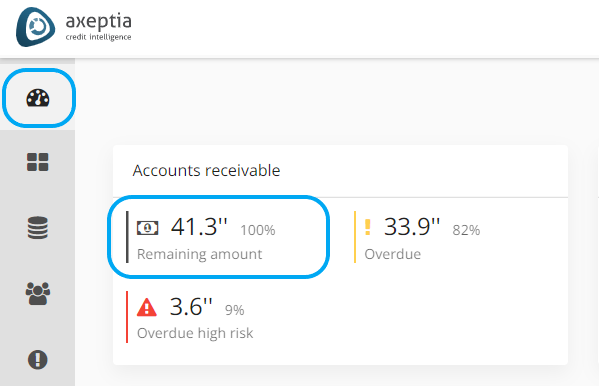
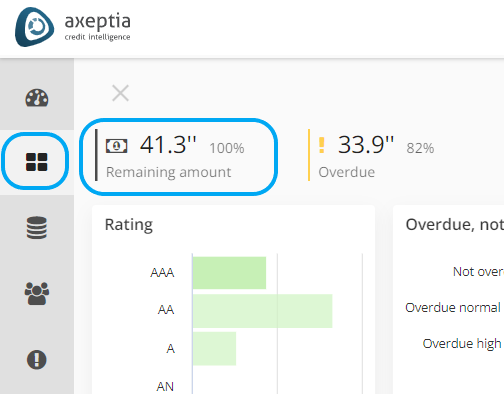
“Remaining amount” can be found on the dashboard in the "Accounts receivable" widget, and at the top of Accounts Receivable page.
PS! These numbers are rounded up.
Medium overview - Specific invoices
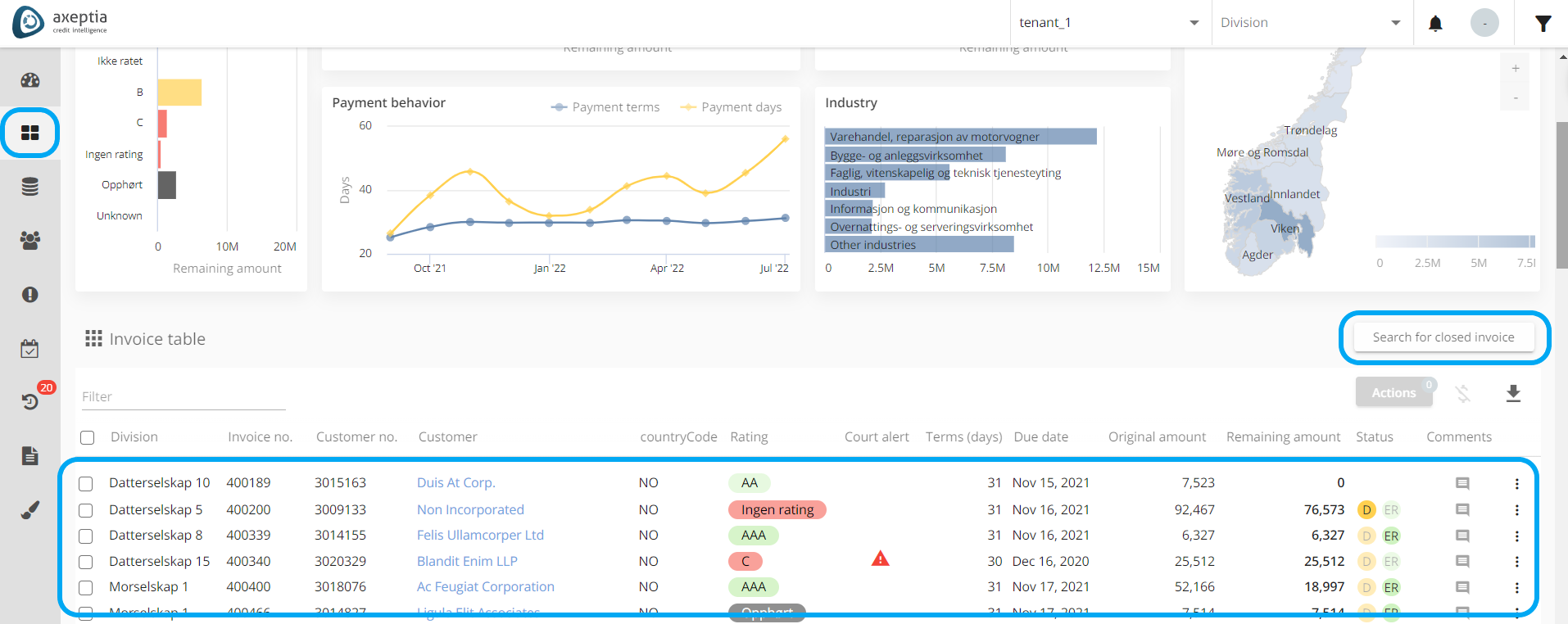
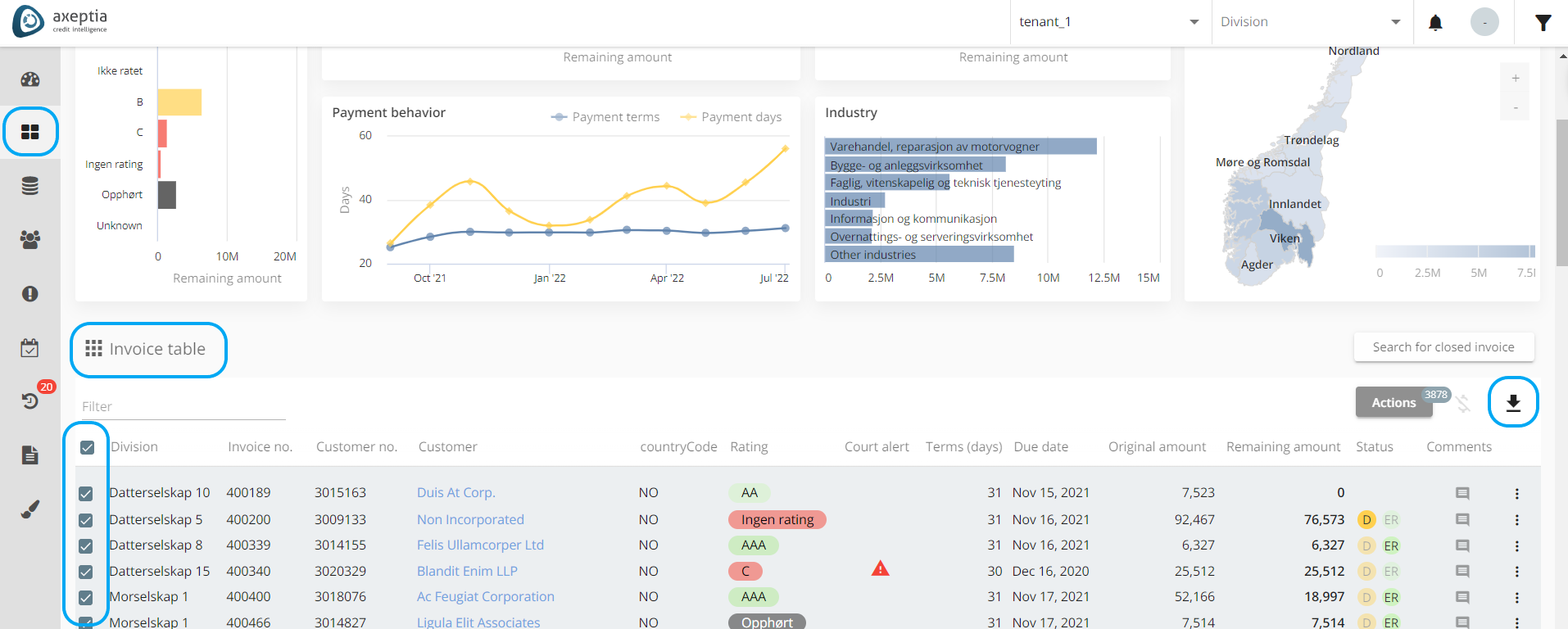
Look up specific invoices in Axeptia and check whether the invoice information matches with your ERP system.
PS! Use "Search for closed invoice" to find closed invoices.
Complete overview - Export invoices
Export all invoices in Axeptia and compare with your own data in Excel. You can extract the customer ledger in the Accounts Receivable page by using the export feature located at the top right of the invoice list.
Changes made outside of Axeptia
Verify that Axeptia receives changes from your ERP system
First, verify that an invoice have the same values in Axeptia and your system. Make any changes to the invoice in your system and check if changes are synchronized with Axeptia (data is updated at least once a day). To get information when data is updated for your company, please contact the Axeptia representative in your company, or email cs@axeptia.com.
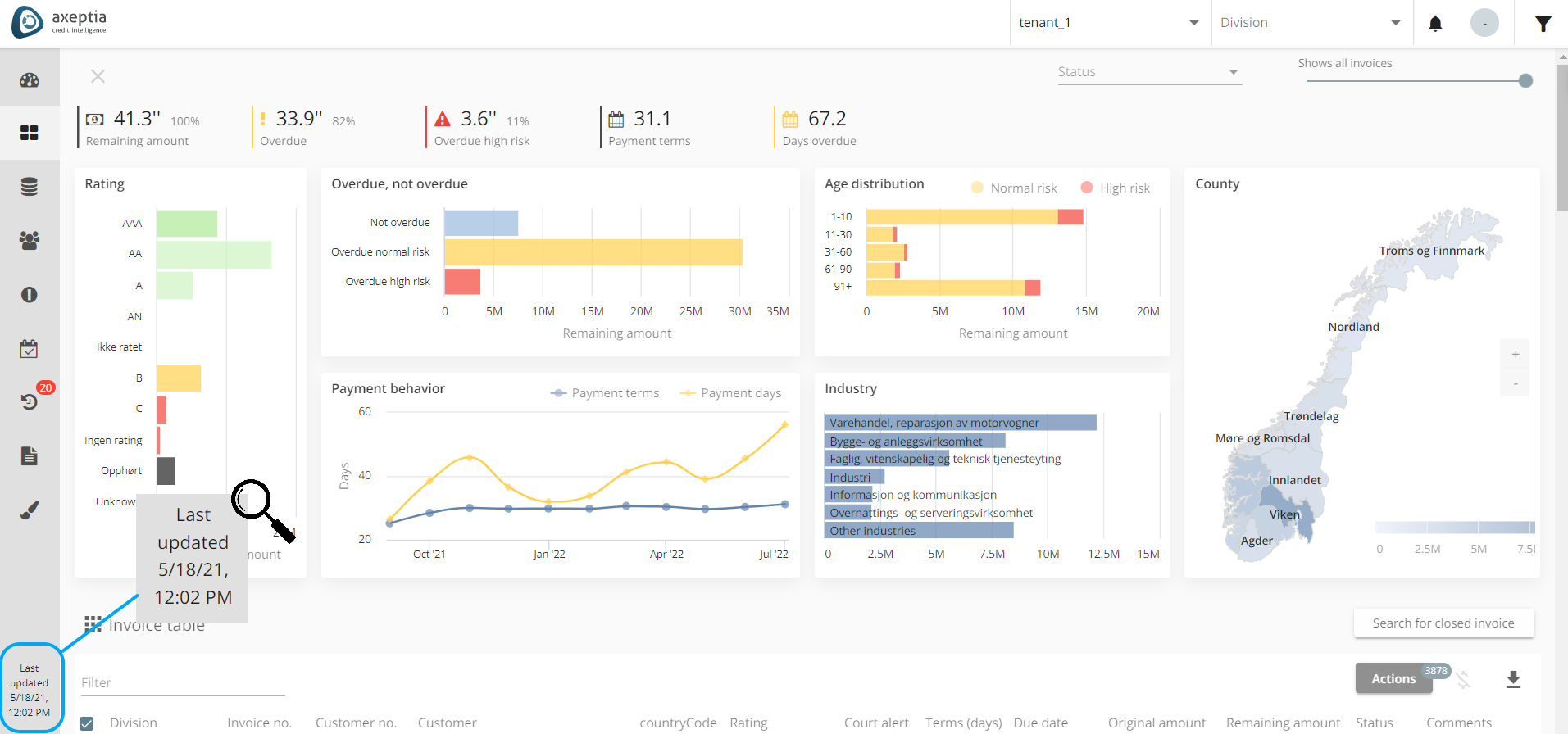
PS: A timestamp at the bottom left of Axeptia shows when data is last updated.